The credit card application is created to enable customers to apply for a credit card by providing basic personal and financial details. The applicant can also define preferences such as whether authorized users are to be added to the card and if balance transfers are to be defined. All the required disclosures and notices are displayed as part of the application and all regulations governing the bank and applicant involved have been kept in mind while identifying information to be captured.
The application tracker is built to enable tracking of the application once it is submitted. The application tracker also enables the applicant to retrieve and complete an application that is saved. Additionally, the applicant can perform certain tasks from the application tracker such as uploading documents required by the bank, specifying additional card preferences such as delivery preferences and card customizations including defining card background and name to be printed on the card.
Credit Card Application Workflow
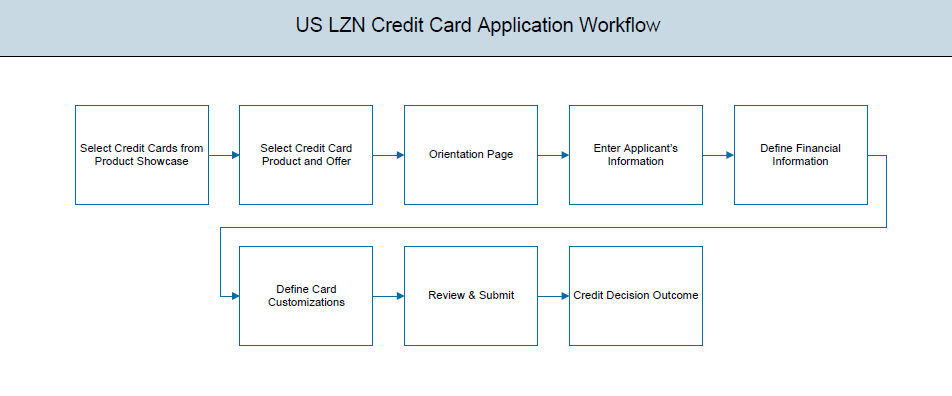
The credit card application process consists of the following steps:
- Applicant Information: The applicant information sections consist of details such as basic personal information, identity, contact, and employment information of the applicant.
- Financial Information: These sections consist of the details such as, income, expense, asset, and liability details of the applicant.
- Card Customization: This section enables you to customize the credit card you are applying for by add authorized users to the card or defining balance transfer to be made to the card.
- Review and Submit: This section comprises of two sub sections. The first displays the summary of the credit card application. You can verify details submitted as part of the application and can modify any if required. The second sub section displays the disclosures and notices applicable on the credit card application. You can view details of these disclosures and notices and if required, give consent to them before submitting the application to the bank.
- Credit Decision Outcome: This section displays the credit decision, once the application is submitted successfully.
To apply for credit card:
- The product selection screen appears.
- Once the appropriate product is selected, click Proceed. The Credit Card Offers screen appear.
- Once the appropriate product is selected, click Apply. The orientation screen of the specific credit card offer appears containing details informing the applicant about the steps involved in the application, details required for application and eligibility criteria. Additionally, the orientation screen also displays text defining the USA Patriot Act, by which you are informed about the bank’s need to comply with the specific act and the requirement to capture certain information of all applicants.
- Click Continue, if you are an anonymous user. The Primary Information, Proof of Identity, Contact Information, Employment Information. Depending on the number of co-applicants, the respective sections are added.
OR
Click Login if you are a registered user. For more information click here.
OR
Click Cancel to abort the mortgage loan application process. For more information on cancel-ling an application click here. - Click the appropriate section to enter the details.
Primary Information
In the primary Information screen enter the appropriate information like, salutation, first name, last name, date of birth, citizenship, etc.
Primary Information

- Click Continue . The Proof of Identity section appears.
Proof of Identity
In the proof of identity section enter the social security number, identity type, state of issue, ID number, and expiry date.
Proof of Identity
- Click Continue to save the identification information. The Contact Information section appears.
Contact Information
In the contact information section enter contact details including your email address, phone numbers, and current residential address. You will be required to enter details of your previous residence if you have stayed at your current residence for less than the amount of time required. This amount of time is defined by the bank in terms of years.
Contact Information
Employment Information
In this section enter details of your employment over a defined period starting with your current primary employment. The details required are type of employment, subsequent status, date on which specific employment was started and if you are salaried or self employed, the company or employer name. If the amount of time at which you have been employed in your current employment is less than the required amount, the system will display fields in which you can enter details of previous employment.
Employment Information
- Click Add to update the employment information.
- Click
 to add more than one employment information.

Note: You can lick to edit the employment information.
- Click Continue to proceed with the application process.
- Click Continue .
OR
Click Save for Later, to register and resume the loan application at later stage. For more information on save for later, click here.
OR
Click Cancel to close the credit card application process. For more information on cancel-ling an application, click here. - The Financial Profile screen appears with Income, Expense, Asset, and Liability sections.
Financial Profile
This page comprises of multiple sections in which you can enter your financial details in the form of income, expenses, assets, and liabilities.
Income Information
In this section enter details of all income that you want to be considered to be the basis on which you will make credit card payments. Hence, any income earned as alimony or child support need not be identified here if you do not wish for it to be considered.

You can add multiple records of income upto a defined limit. Click the icon to add additional income records and the icon against a specific record to delete it.
- From the Source of Income list, select your source of income.
- In the Gross income field, enter your gross income.
- In the Net Income field, enter your net income.
- From the Frequency list, select the frequency in which you earn the particular income.
Income Information
- Click Save to update the income details.
- Click Continue to proceed with the expense details section.
OR
Click the icon to add another income records.
Expenses
In this section enter details of all expenses you incur on a regular basis. You can add multiple expense records up to a defined limit. Click the icon to add additional expense records and the icon against a specific record to delete it.
- From the Type of Expense list, select the expense.
- In the Total Expense Value field, enter the applicants expense value.
- From the Frequency of Expense list, select the frequency in which the expense is incurred.
Expense Information
- Click Save to update the expense details.
- Click Continue to proceed with the asset details section. OR
Click the icon to add another expense records.
Asset
In this section enter details of all assets owned by you. You can add multiple asset records up to a defined limit. Click the icon to add additional asset records and the icon against a specific record to delete it.
- From the Type of Asset list, select the appropriate option.
- In the Value field, enter the value of the liability in the given currency .
Assets
- Click Save.
- Click Continue to proceed with the liability details section.
OR
Click the icon to add another asset records.
Liabilities
In this section enter details of all your liabilities. You can add multiple records up to a defined limit. Click the icon to add additional records and the icon against a specific record to delete it.
- From the Type of Liability list, select an appropriate option.
- In the Original Value field, enter the original value that is the initial value of the liability.
- In the Outstanding Value field, enter the outstanding value of the liability.
Liabilities
Field DescriptionClick Continue to proceed with the application process. Click Continue. The Customize your Card screen appears.
OR
Click the icon to add another asset records.
- Once the asset, liability, income, and expense details are entered click Continue. The Customize your Card screen appears.
- The Customize your Card screen appears.
Customize Card
In this section you can define preferences related to your credit card. You can opt to add authorized users on your card and also define details of balances to be transferred to your new card.
Customize Card
The following is applicable for both Authorized Users as well as Balance Transfer sub sections:
- Click Add to save the specific.
OR
Click to delete the record. - Click to add another authorized user.
OR
Click to edit the information of a previously entered record.
OR
Click Continue - Click Review and Submit. The review screen appears.
Review and Submit
The review and submit page consists of the following two sub sections:
- Application Verification – This section will display all the information you have entered in the application. You can verify that all the information provided by you is correct and make any changes if required.
- Disclosures and Consents – This section displays all the various disclosures and notices impacting you and the bank. The facility to provide your consent to a disclosure is provided against each disclosure.
Disclosure and Consents
- Once you have verified all the information and have provided consent to all the disclosures click Submit.
- The screen confirming application submission will be displayed which will contain the application reference number, decision outcome and any additional steps that might need to be undertaken by you or the bank.
- Click Track your Application. The application dashboard screen appears. For more information on track application click here.
OR
Click Go to Homepage to navigate to the application dashboard screen. - The Login screen appears. In the USERNAME field, enter the user name created while submitting the application.
- In the PASSWORD field, enter the password.
- Click Login. The application tracker screen appears with submitted as well as in draft applications.
- If the applicant who has filled in the application details is not a registered channel user will have an option to register for channel access. Click Register.
To register an applicant:
- In the Email field, enter the email address.
- To confirm enter the enter the email ID in the Confirm Emailfield.
- Click Verify link to verify the entered email address.
- In the Verification Code field, enter the verification code sent on the registered email ID.
- Click Resend Code, if the code is not received.
- Click Submit. The successful email verification message appears.
- In the Password field, enter the password required for log-in.
- To confirm enter the password in the Confirm Passwordfield.
Register Applicant
- Click Send Link to receive the co-applicants registration link.
OR
Click Track Application to view the applications status.
OR
Click Go To Homepage to view the loan application.
At any point you can cancel an application.
To cancel an application:
- Click Cancel. The cancel application screen appears with reasons to cancel.
Cancel Application
- Select the appropriate reason for cancelling the application.
- Click Cancel and Exit to cancel and exit the application. Application has been cancelled message appears.
OR
Click Return to Application to view the loan application. - Click Go To Homepage to navigate to the application dashboard screen.
There will be two scenarios in this case
- If the applicant is a registered user and he/she is already logged in then the applicant will get a confirmation page indicating submission saved successfully.
- If the applicant is a new user i.e. who is not registered on channel, then he/she will need to go through the following steps.
To save an application:
- Click Save for Later. The Save and Complete Later screen appears.
- In the Email field, enter the email address.
- To confirm enter the enter the email ID in the Confirm Emailfield.
- Click Verify link to verify the entered email address.
- In the Verification Code field, enter the verification code sent on the registered email ID.
- Click Resend Code, if the code is not received.
- Click Submit. The successful email verification message appears.
- In the Password field, enter the password required for log-in.
- To confirm enter the password in the Confirm Passwordfield.
- Click Save Application .
OR
Click Cancel Application to close the save and complete later screen.
OR
Click Return to Application to navigate to the application screen.
Note: The saved application appears in Track Application under In Draft. You can click the application summary and resume application submission process.
- Click Track your Application. to view the application status.
The track application allows you to view the progress of the application. Through track application you can:
- View submitted application: It allows you to view the submitted application details, any view information related to the application and complete pending tasks applicable.
- View application in draft: If you click save for later while submitting the application, the application is saved as draft application. So that you can retrieve the application at later stage and complete the application submission process.
To track an application:
- Click Track Application on the dashboard. The Login screen appears.
- Enter the registered email ID and password, click Login.
- The Application Tracker screen appears. By default the submitted application view appears.
Submitted Application
- Click the application details to view the application summary. The Application Summary screen appears with details like, actions to be performed and application details to be viewed.
- Click the link Additional Preferences under the Action Required section. A screen is displayed with options for you to specify Card Preferences, Delivery Preferences and Membership Linkages.
- Click on the links under the View section to view application summary, account summary and other details.
Additional Preferences
This screen displays the options that you can select to perform any of the following actions
- Configure your cards in the Card Preferences section.
- Specify Delivery Preferences for your Card, PIN and Statement in the Delivery Preferences section.
- Link your card to membership programs in the Membership Linkage section.
- Click on the Card Preferences accordion to expand the section on which you can specify preferences to personalize your card.
OR
Click on the Delivery Preference accordion to expand the section on which you can define preferences pertaining to where your card, PIN and statement are to be delivered.
OR
Click on the Membership Linkage accordion to expand the section on which you can define membership linkages
Card Preferences
In this section you can configure your card i.e. the primary card as well as the cards of your authorized users.
Card Preferences
- Click Save to save the configurations.
OR
Click Continue to submit the configurations.
Delivery Preferences
In this section you can define delivery preferences pertaining to where you want your card, PIN, periodic statements to be delivered. The delivery preferences specified for card and PIN will be applicable for your authorized users’ cards and PINs as well.
Delivery Preferences
- Click Continue to submit the configurations.
Membership Linkage
In this section, the names of membership programs affiliated with your new credit card will be displayed. You can link your membership ID of each respective program to your card so as to earn membership rewards when using your card to make purchases from these institutions.
- Click Continue to submit the linkages defined.
Application Summary
This screen displays a summary of your credit card application. You can click on the View Complete Application link provided on the screen to view the complete application in PDF format.
- Click View Complete Application to view details of the entire application in a PDF.
Status History
Status history displays the status of the various stages of loan application, remarks, user name, and date on which the status is updated.
Status History
Document Upload
Document upload allows you to upload the documents which are required for the application processing. You can upload multiple documents for a document type. Simultaneously you can upload multiple documents. You can remove any uploaded document.
To upload / remove a document:
- Click Documents link.
- Click Choose file.
- The open file screen appears. Select the appropriate file to be uploaded and click Open.
- Click Upload. The file is uploaded.
Document Upload

Note: Click to remove the uploaded document.
- Click Document link. The status of the uploaded document appears, once the document are verified.
Uploaded Document
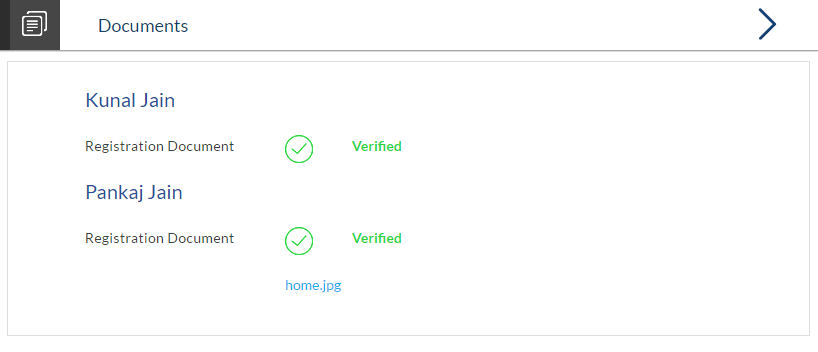
- Click on the image link to download the uploaded document file.
FAQs
Can I apply for a credit card if I am not a citizen of the United States?
Why do I have to provide my Social Security Number (SSN) in the application? How does the bank ensure that my information is safe?
Why do you require the expiry date of my identity proof?
Can I provide my P.O. box as residential address?
I have my entire zip code i.e. in zip+4 format. Can I provide my entire zip code?
Do I need to include the income I get as alimony in the income section of the application?
Can I add multiple authorized users to my card?
What are the eligibility requirements to be met for someone to be added as an authorized user?
Can I transfer balances from multiple cards to my new card?
. Is there a maximum limit defined on the amount of balance that can be transferred to my card?
Why do I have to give my consent to all the disclosures displayed under the Review & Submit section?
14. I am an existing customer of the bank but do not have channel access, how can I proceed?
Can I proceed with the application if I am not an existing channel user?
Why am I asked to capture previous residential address details?
Is it mandatory to change the default configuration for an account as part of application tracker?
Why am I being asked to capture previous employment details?
 Just wait